
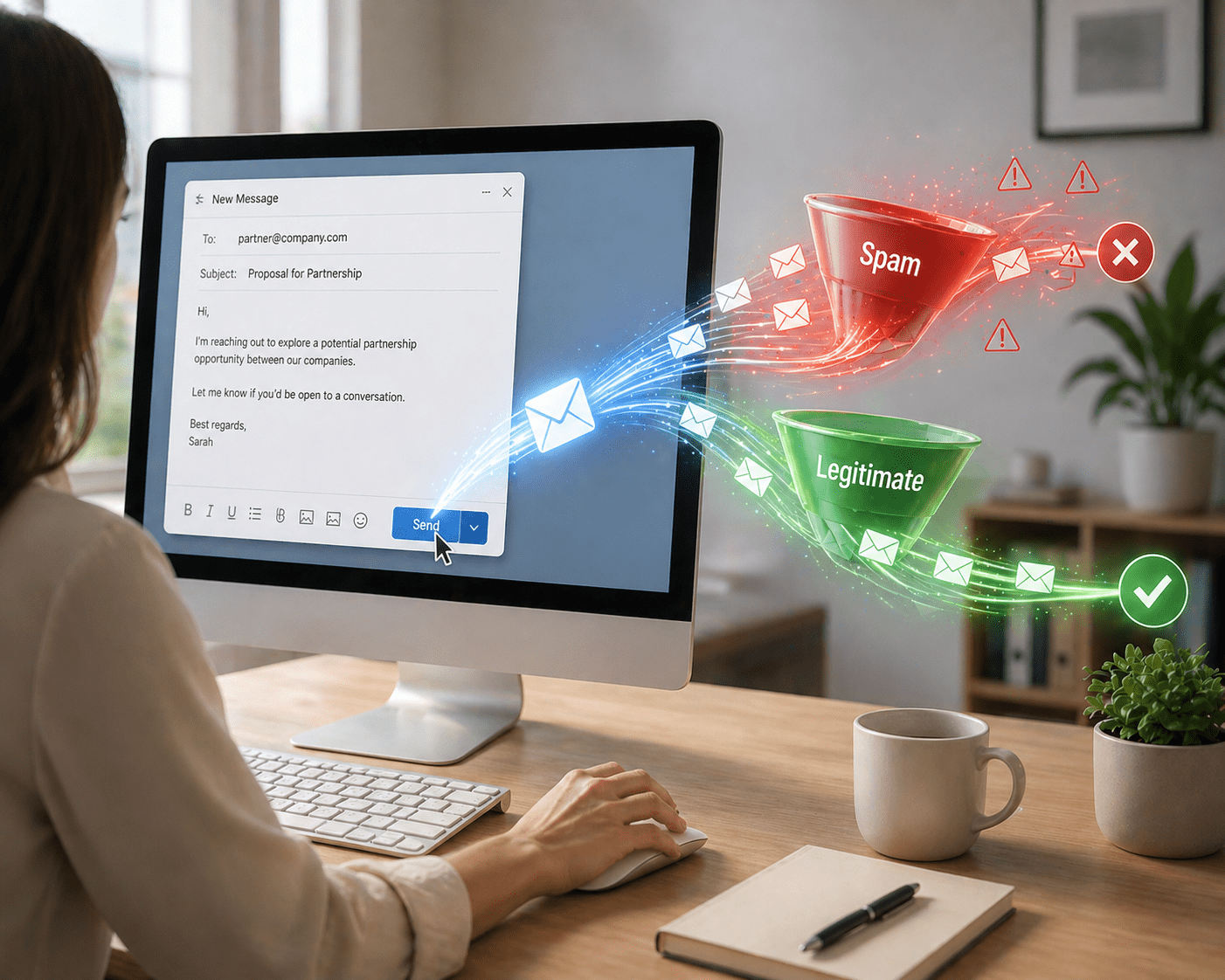
It’s Monday morning, and a high-value prospect is waiting for your email. You take the time to scan the call notes and write the most perfect email that you’re sure will land you at least a follow-up call.
You hit send. Off it goes into the digital ether, and you carry on about your day, excited every time you open your inbox. Except your very-interested prospect doesn’t respond. By lunch time, you assume they just haven’t seen it. By closing time, you assume they’re just taking their time responding.
Two days later, still no reply. That’s odd, so you send a one-line follow-up…and still, by closing time, nothing.
What you don’t know is that your prospect waited for your email, but they never got it because it ended up in the darkest, forgotten corner of their inbox… spam.
Most businesses assume that if an email sends, it’s working. Unfortunately, that’s not really how it works anymore.
In this blog, we’re going to break down what’s causing your emails to go to spam and where most setups can throw a wrench into your prospect/client communications.
The Email Assumption That Trips Everyone Up
A lot of us like to think that if an email is sent, it’s working just fine. Email has become such an integral part of doing business that we never assume anything might need a closer look unless a warning message pops up in bright red on our screens.
To be fair, it used to be that simple.
But that’s not really how it works anymore. Email providers like Gmail and Microsoft 365 don’t just deliver messages anymore; they evaluate them as well. Every single email you send or receive is checked before it ever reaches your inbox.
Your mail provider meticulously scans every message, shrewdly asking, “Is this sender legitimate?”, “Does this domain look trustworthy?”,“Has this email been properly verified?”
If your provider answers ‘No’ to any of these questions, your email gets filtered, flagged, or pushed somewhere it’ll never be found.
So how can you avoid this?
Keep reading.
What Inbox Providers Are Actually Looking For
When your provider checks incoming emails, you might assume that they’re only looking for spammy language and weird links. While your assumption is right to an extent, your provider is actually looking for something more basic. So basic, in fact, that it’s easy to miss.
Is this email actually coming from who it says it’s coming from?
This is where email authentication comes in. What your provider is actually scanning for is the answer to the above question. This comes in the form of SPF, DKIM, and DMARC. We’ve wrote about this at length, so go check out that blog so you know what we’re talking about here.
You don’t need to know how they all work, but what you absolutely need to know is what they do.
In a nutshell, they tell inbox providers that your email is legitimate and safe to deliver. If those checks aren’t set up correctly, or they’re missing altogether, your emails are marked as not legitimate, and they either won’t get delivered at all, or will go straight to spam.
The kicker is that you won’t be notified. You probably would never know unless you took the time to check your email authentication permissions.
The Most Common Issue We See
When most emails go to spam, most people try to pin the culprit on the content of the email itself. The subject line isn’t catchy enough, or maybe you should have left out that Calendly link. Maybe the presentation attachment was just too big.
Sometimes, that could be issue, but more often than not, it really does boil down to your email authentication.
Specifically, we need to take a closer look at DKIM. At a high level, it works like a digital signature. Every time you send an email, that signature gets attached to it. When the message reaches Gmail, Microsoft, or any other provider, they check that signature against your domain to check whether or not that email really came from you.
If everything lines up, your email is treated as legitimate and gets routed where it’s supposed to go. If it doesn’t line up or if that DKIM signature isn’t there at all, expect the recipient to never see your email at all.
What email providers know is that without DKIM, it’s a lot easier to impersonate your domain and send emails as you, which is why they put your email in the red flag pile and send you to spam.
Where DKIM Setup Breaks
If you aren’t an IT professional, or don’t know anything about email authentication, this is really easy to miss.
Setting up DKIM usually means adding a record to your domain’s DNS (the place where your domain settings live). If your somain is hosted by Amazon, that’s typically managed in something called Route 53.
You don’t need to know much about it beyond this: Route 53 is where you go to add the records that tell the internet how your domain should behave, including the ones that verify your emails.
When you setup DKIM, your email provider gives you a DKIM key. The key is a long string of text that you’re supposed to copy and paste into your DNS settings.
Here’s where the big issue usually comes in: The DKIM key you’re given is long. Usually longer than what Route 53 allows in a single field. So when you go to paste it in, one of two things happens:
- It throws an error
- Or it looks like it worked and the key was accepted, but it wasn’t.
Because everything looks fine on the surface, this is where a lot of DKIM configurations go wrong without anyone realizing it.
The Simple Fix
At this point, most people try to make it work manually. They copy the key, try to break it up, and paste it a few different ways until Route 53 accepts it.
Most of the time, this doesn’t work. Even when it seems to, there’s no real confidence that it’s set up correctly. This is why we built a simple (and completely free) tool that splits that DKIM key for you.
Our Route 53 DKIM Splitter takes the key your email provider gives you and formats it correctly so Route 53 accepts it…actually accepts it.
All you have to do is paste the DKIM key from your mail provider into the tool, it gives you the right format, paste it into Route 53, and you’re done.
How To Use It
You don’t need to understand the Ts and Cs of how DKIM works to get this right. You just need the key your email provider gives you. Here’s what the process looks like:
- Go to your email provider (Google Workspace, Microsoft 365, or another service) and generate your DKIM record. Getting your DKIM record may look different depending on the provider.
- Copy the long string of text they give you (usually the part that starts with “p=”)
- Paste it into our DKIM splitter
- Copy the formatted result
- Add it to your Route 53 DNS record
- Verify the setup using your provider’s tool
Once it’s in the right format, Route 53 accepts it and your emails can start passing the checks they need to land your inbox.
If you want a bird’s-eye view of your email authentication settings, we built a free tool for that, too. Check it out here, and contact us if you need help understanding the results.